Loading…
OS X 10.7+
The first port-of-call for those that are new to Git and GitHub. No programming knowledge necessary!
You can add a repository by dragging a folder to the application. If it is a Git repository, we’ll import all of the history and connect it to your GitHub accounts. If the folder isn’t a Git repository, we’ll prompt you to create a new repository from it.
Another great way to add repositories is to clone straight from GitHub.com. After you've installed Mac, you'll get a new button on GitHub.com when you're logged in that allows you to clone with one click.
If your repository has a remote connected, we encourage you to use the Sync Branch button. In one step, we'll
bring in new changes from the remote and push any commits you haven't published yet. Behind
the scenes, we do the equivalent of a git pull --rebase (but make sure to never rewrite merges).

If you would like to perform a standard pull or push without syncing
everything, you can do so via the Repository menu item.
You can remove repositories simply by control-clicking on a repository in the app, and selecting "Remove" from the contextual menu.
This will only remove the repository reference from GitHub for Mac. It won't delete your local copy or the remote from GitHub.com.
No, GitHub for Mac requires OS X 10.7 Lion or higher.
We made this decision because the app relies on a number of technologies which are not available in Mac OS X 10.6 or earlier. We want to provide the best experience possible for the app's users, so we've made the choice to only support 10.7 and above, and not make earlier versions available.
GitHub for Mac does not support multiple Git remotes. We will only work
with the origin remote. If you wish to push & pull to other remotes, we
suggest that you use the command line client.
GitHub for Mac is optimized to work with GitHub remotes — but if you wish to use a non-GitHub remote, it will work just fine. Set the remote manually in the 'Settings' view and everything else should work as expected.
When you want to switch branches, click the branch icon in the lower left or use the ⌘+B shortcut to open the branches popover.
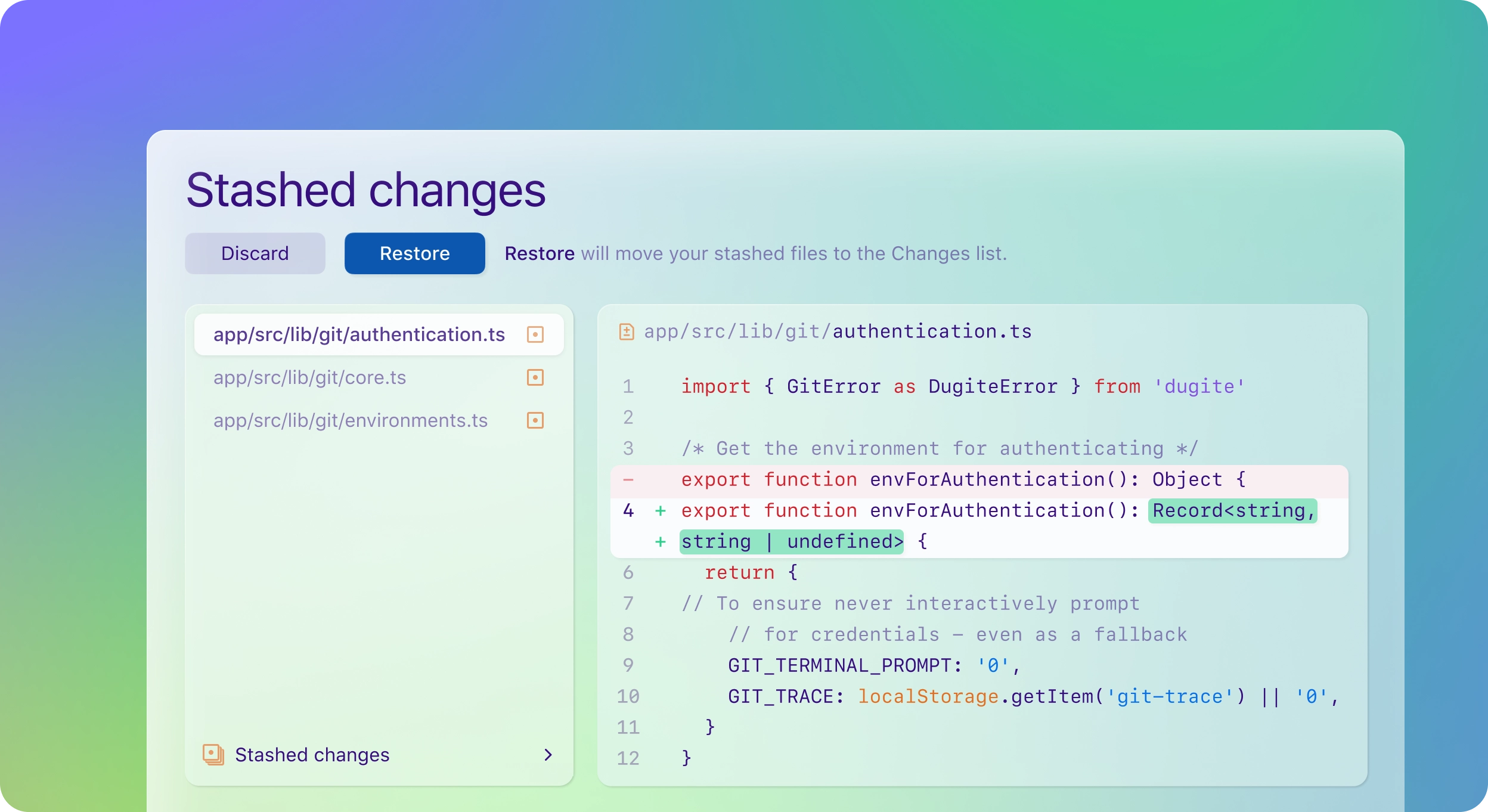
You'll notice when you switch branches we perform what we call magic stashing. Any time you have local file changes and switch branches, we'll save those changes and apply them when you switch back to the branch. This is different than the way the git command line client works — it may take some getting used to.
Every time you create a commit, Git stores an email address inside of the commit. This is the email address you can find in the preferences screen.
We then use Gravatar to display an avatar for that email address. If you'd like to see your face next to commits, register a gravatar with the email address you use to make commits.
The "Clone in Mac" button requires that you be logged into GitHub.com and GitHub for Mac at the same time. Logging in on the website and through GitHub for Mac's Preferences should then enable the "Clone in Mac" button.
Feel free to send us any additional questions you have to support@github.com and we’ll help you out. Night or day.
© 2013 GitHub Inc. All rights reserved